 Se connecter / Devenir membre


 Allemagne
 Autriche
 Belgique
 Bulgarie
 Chypre
 Croatie
 Danemark
 Espagne
 Estonie
 Finlande
 France
 Grèce
Grèce
 Hongrie
 Irlande
 Italie
 Lettonie
 Lituanie
 Malte
Malte
 Pays-Bas
 Pologne
 Portugal
 Roumanie
 Slovaquie
 Slovénie
 Suède
Suède
 Tchéquie

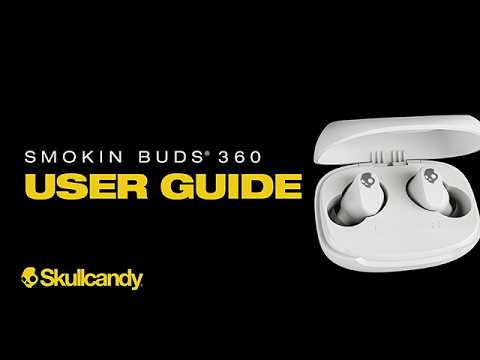
SMOKIN BUDS 360 USER GUIDE, TROUBLESHOOTING, & FAQS
Initial power on & charging support:
Power on:
-
To power SMOKIN BUDS 360 ON for the first time, remove the stickers covering the charging points on both buds. Place the earbuds back in the charging case, and the charge case LED next to the USB-C port will show amber/yellow for 2 seconds. Remove the buds and the charge case LED will show white for 2 seconds, indicating your SMOKIN BUDS 360 ear buds are now on.
-
Your earbuds will automatically turn on when you remove them from the case, and they’ll automatically turn off when you put them back in the case.
-
To manually power your buds OFF outside of the case, tap the skull logo /sensor two times, then hold for 1 second. (Press and release, press and release, press and hold for 1 second).
-
To turn them back ON, press each earbud for 1 second.
Charging:
-
SMOKIN BUDS 360 holds up to 7 hours of play on a single charge and an additional 13 hours in the case for 20 hours total.
-
A voice prompt will say “battery is just about dead” when your battery has about 30-45 minutes of play time remaining and will repeat every 10 minutes until there is no battery life left.
-
To charge your earbuds, place them in the charging case. The charge case LED will flash amber to indicate your buds have turned off and are charging.
-
To check the case battery life, plug the case into a power source. The single LED located next to the USB-C charging port will light up and indicate the current case battery level.
Pulsing amber = 0%-40%
Pulsing white = 41%-90%
Solid white = 91%-100%
The SMOKIN BUDS 360 case can be independently charged, whether the earbuds are in it or not.
With our rapid charge feature, a 10-minute charge of the charging case or earbuds will provide 1 hour and 45 minutes of play time.
Charge 10 minutes = 1 hour 45 minutes
Initial pairing support:
First time pairing out of the box
-
To pair to your device for the first time, make sure you’ve removed the stickers from the charging points and return the earbuds to the charging case.
-
Now, remove both earbuds from the case. A voice prompt will indicate that your earbuds have “powered on” and a voice prompt will then say “pairing”, your buds are now in pairing mode.
-
Open the Bluetooth settings on your device and find “SMOKIN BUDS 360” in your list of available devices.
-
Select “SMOKIN BUDS 360” and accept the “pair” or “OK” prompt that may appear on your screen. When pairing is complete, a voice prompt will confirm pairing.
Multipoint pairing: pair to a second new device (after first time pairing, while earbuds are powered on and connected).
This feature makes it possible to pair your earbuds with two devices at once. The connection is managed automatically — you won’t need to do anything after pairing the second device.
For example — while watching YouTube videos on your laptop, you can take a call on your phone without the hassle of disconnecting from one device to pair with another.
To utilize multipoint pairing and pair to a second device when you’re already powered on and connected to a device.
-
Press and hold the skull logo on either earbud for 3 seconds. This will again enter both earbuds into pairing mode.
-
The voice prompt will say “pairing”, and you can select “SMOKIN BUDS 360” from the available Bluetooth device list. Then accept the prompt that will appear on your screen.
-
Once paired to the second device, you will be able to seamlessly stream from either device as needed.
-
Now that you’ve paired to multiple devices, each time you power on your earbuds, they will automatically pair to the two most recently paired devices.
Want to add a new device via multipoint pairing? (While already connected and paired to TWO devices)
-
Simply enter into pairing mode while connected to the current two devices, and pair normally to the new device.
-
Once connected to the newly added device, the device that was first paired to your earbuds will be disconnected and you will be paired to the two most recently paired devices via multipoint.
-
It’s important to note that after powering your earbuds off and back on, the two most recently paired devices will always become the default multipoint duo.
Streaming audio with multipoint pairing:
With your SMOKIN BUDS 360 earbuds, you’re able to play audio from either paired device at any time, but they will not play simultaneously.
For example, if you press play on one device while the other is streaming audio, the streaming device will automatically pause and the new device will begin to stream. No need to pause one before starting the other, the connection is managed automatically.
Streaming audio + phone calls + prompt tones and voice assistant with multipoint:
With your SMOKIN BUDS 360 earbuds, if you’re streaming audio from one device and get a phone/ zoom call on the other, the streaming audio will automatically pause, and the call device will take priority.
Once the call has ended, the audio will then resume on the previously streaming device.
Similarly, if there is an important notification prompt tone from the device that is not currently streaming, the audio will pause briefly to notify the user, and then streaming will resume normally.
What happens if I'm currently on an active call and the second device gets an incoming call? You will always need to end the first active call before the second can be answered.
You will not be able to have two active calls going at the same time.
If there are no active calls (and not streaming audio) on either device, the first call incoming or outgoing on either device will take priority.
With your SMOKIN BUDS 360 earbuds, the native voice assistant on either device cannot be activated during any sequence of active or outgoing calls, but CAN be activated from either device even if one is streaming audio.
User controls
SMOKING BUDS 360 media controls are ready to keep you connected and in complete control of your Bluetooth enabled device.
We’ve also incorporated a simple feedback tone feature that allows you to hear each time you have tapped the touch sensor on your earbud (located on the Skullcandy logo) or when tapping more than one time in a sequence. You will hear a tone or ascending tones to give you better control of your media. They are very subtle and do not disrupt your listening, easy to hear even while playing music, and the quick sensor response tone will help you quickly learn your way around the controls on your earbuds.
Manually power on: either earbud
-
Press and hold either earbud for one second (1s hold).
Manually power off: either earbud
-
Double tap either earbud then Short Press (1s hold)
Play / pause / answer call: either earbud
-
Single tap either earbud (1x press).
End / reject incoming call: either earbud
-
Press and hold either earbud for one second (1s hold).
Enter Bluetooth pairing: either earbud
-
Press and hold either earbud for 3 seconds (3s hold).
Track forward: either earbud
-
To skip to the next track, tap either earbud two times (2x press).
Track backward: either earbud
-
To skip to the previous track, or restart the current track, tap either earbud three times (3x press).
The Skullcandy app
-
You can connect your SMOKIN BUDS 360 to the Skullcandy app to register your product and check the battery life of your ear buds.
-
Once you have paired your earbuds to your device, open the Skullcandy app and it will automatically link to your earbuds.
Preset EQ
To help you get the best sound quality from your content, SMOKIN BUDS 360 features 3 EQ modes.
-
Music mode
-
Bass boost mode
-
Podcast mode
To switch between EQ modes, tap the RIGHT ear bud four times, and a voice prompt will notify you each time you change your EQ mode.
-
Your default EQ setting is music mode, which is great for general listening.
-
Bass boost mode increases the low frequencies for a bass-heavy audio experience.
-
Podcast mode removes most of the bass response and is great for podcasts or audio books.
Activate your voice assistant
Who do you ask for help? Siri? Bixby? Google assistant? Unlike proprietary earbuds, Skullcandy earbuds work with any assistant.
-
To activate your assistant, tap the LEFT ear bud four times.
Solo and stereo modes:
Sometimes you want to be able to hear your music, but still hear what’s going on around you. When you want to do that, you can use just one earbud.
We call this solo mode. Both the left or right earbud of SMOKIN BUDS 360 can be used in solo mode.
To use solo mode
-
Simply remove either earbud from the charging case and this solo earbud will function with both phone calls and music.
-
If you are initially pairing only one earbud, simply follow the same initial pairing steps above and you’re good to go.
-
To use both earbuds again, simply remove the other bud from the case at any time, you will hear the power on voice prompt, and your audio will begin to stream automatically.
Fit:
SMOKIN BUDS 360 delivers the bold sound you expect in a smaller, pea-shaped design made to fit more ears comfortably. The compact shape sits naturally in your ear, providing a secure, comfortable fit for a wider range of ear sizes and preferences.
Here’s how to get the best fit.
First, place the bud in your ear at an angle, then rotate minimally to the front or back to secure in place. Your earbud should feel comfortable and stable.
For optimal acoustic performance, you also want to be sure your ear gel creates a nice seal just inside your canal.
SMOKIN BUDS 360 comes with 3 sizes of ear gels to help you find the best fit. Try each size provided to see which fit works best for you.
Having trouble? Don’t return to the store and let us help!
No audio in one ear?
Let’s re-sync your earbuds by first placing both of them into the charge case and ensure the LEDs on the charge case, next to the usb-c port, flashes yellow or white. Then simply remove both earbuds together. If the stereo audio stream hasn’t been fixed, please follow the steps below.
-
On your device, open the Bluetooth settings and turn Bluetooth OFF.
-
Remove both earbuds from the charge case and ensure they are both powered ON.
-
Tap the LEFT and RIGHT ear buds four times simultaneously. You will hear an audio tone prompting you that the reset was successful.
-
On your device, open the Bluetooth settings again and turn ON, then select your previously paired “SMOKIN BUDS 360”.
-
You will hear the “connected” voice prompt which indicates a successful pairing to your device.
If you are still having pairing issues, please proceed to follow the instructions below to restore your earbuds to factory default settings and get them streaming correctly.
-
Remove “SMOKIN BUDS 360” from your Bluetooth paired device list in settings, and then turn the Bluetooth OFF.
-
Remove BOTH earbuds from the charging case, a voice prompt will indicate your earbuds are “powered ON”.
-
Press and hold the right or left earbud buttons for six seconds (6). You will hear an audio tone signaling a successful reset.
-
Your earbuds with then go into pairing mode indicated by voice prompt “Pairing”.
-
On your device, open your Bluetooth settings and turn Bluetooth ON.
-
In the available devices list, select “SMOKIN BUDS 360” and accept the “pair” or “OK” prompt that appears on your screen.
-
When pairing is complete, a voice prompt will say “Bluetooth connected”.
Earbuds or case not charging properly?
Issue: the charge case LED not turning on when your USB-C cable is plugged in?
Solution:
-
Check to see if any debris is blocking the charging pins at the bottom of the case, on the earbuds, or in the USB-C plug or port.
-
Check to see if the removable in-ear gels have been twisted or are falling off. This could be keeping the earbuds from sitting correctly in the case. If you’re having a hard time closing the lid completely, it is likely because the earbuds are not set correctly or the ear gels are interfering.
-
Make sure the charging cable is properly inserted into a suitable power source.
-
Check the battery level LED on the charging case to ensure the case is holding a charge.
IMPORTANT – if your earbuds are not automatically powering OFF or charging when placed into the case, please ensure that the case battery isn’t completely drained. If the case battery is completely dead, the earbuds will not recognize they are in the case and will not automatically power off and begin to charge, and they will not power ON when removed from the case.
Frequently asked questions
Playtime/battery life & charging:
How long does the SMOKIN BUDS 360 battery last?
There is 7+ hours of play time in the ear buds, and up to 13+ hours in the case, allowing 20+ hours of total play time.
Earbuds = 7+ hours
Case = 13+ hours
Total = 20+ hours
What is the total charging time for SMOKIN BUDS 360.
Your earbuds will charge to full capacity in just about 40 minutes and your case will take about 75 minutes.
Does SMOKIN BUDS 360 have some sort of fast charge?
Yes, SMOKIN BUDS 360 has rapid charge technology via the provided USB-C cable and internally for the earbuds.
10-minute charge of the earbuds = 1 hour and 45 minutes of playtime.
10-minute charge of the case = 1 hour and 45 minutes of playtime.
Can I charge SMOKIN BUDS 360 with my Skullcandy power accessories/PC/laptop?
Yes. Pretty much all usb-c charging ports will work to charge your SMOKIN BUDS 360 charge case.
Durability: IPX4
Can I use SMOKIN BUDS 360 for working out?
Absolutely – SMOKIN BUDS 360 is sweat and water resistant (IPX4). Just be sure to dry them off before putting them back into the charging case.
Feature details:
Skullcandy app
When connected to the Skullcandy app you will be able to check the battery life of your ear buds and register your product for technical support.
Connection:
What is the Bluetooth range of the SMOKIN BUDS 360?
You will be able to listen up to 30+ feet (10+ meters) away from your paired device, though your connection experience may vary based on your environment.
Can I connect SMOKIN BUDS 360 to a computer?
Yes, as well as to a phone, tablet, MP3 player, laptop, or anything else with a Bluetooth connection.
Can I use SMOKIN BUDS 360 with a PS4/Xbox one/switch?
Xbox one: no
Switch: yes
PS4/5: no (but they will if you have a separate BT transmitter dongle)
Which version of Bluetooth does SMOKIN BUDS 360 use?
It uses Bluetooth® version 5.4.
When on a call or listening to my content, will I hear audio in one or both earbuds?
SMOKIN BUDS 360 has stereo (both earbuds) calling and streaming so you’ll always hear the caller or your content in both ears.
You have the option to use only one ear bud (left or right side) if you prefer solo mode in some situations.
Can I use Siri/google assistant/Alexa with my SMOKIN BUDS 360?
Yes. When paired to your device, you can activate your local voice assistant feature at any time by tapping the left earbud four times.
Warranty
What happens if my earbuds are broken?
Please be sure to reach out to customer service before filing a warranty claim, we can likely help you quickly troubleshoot and solve your problem. If we cannot solve your problem, and it is a manufacturer's defect, Skullcandy has you covered with a 1-year limited warranty.