 Se connecter / Devenir membre


 Bulgarien
 Dänemark
 Deutschland
 Estland
 Finnland
 Frankreich
 Griechenland
 Irland
 Italien
 Kroatien
 Lettland
 Litauen
 Luxemburg
 Malta
Malta
 Niederlande
 Österreich
 Polen
Polen
 Portugal
 Rumänien
 Schweden
 Slowakei
 Slowenien
 Spanien
 Tschechien
 Ungarn
 Zypern


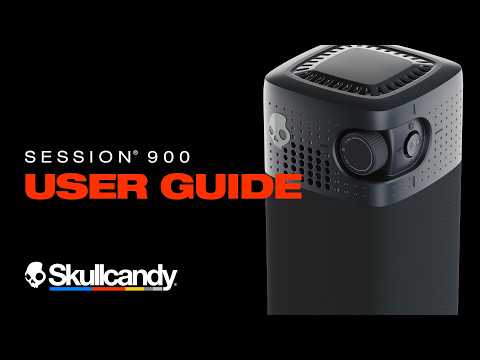
User Guide, Features & FAQs
|
Model |
SESSION 900 |
|
Type |
Portable Bluetooth Speaker |
|
Battery Life |
Up to 30 hours |
|
Battery Life W/Battery Saver Mode ON |
Up to 49 Hours |
|
Rapid Charge |
10 min charge = 2+ hours playtime |
|
Bluetooth |
V6.0 |
|
Durability |
Shockproof to withstand a drop from 1 meter to concrete |
|
IP Rating |
IP67 - Waterproof & Dustproof |
|
App Support |
Skullcandy App — iOS & Android APP DOWNLOAD |
|
Charging Port |
USB-C (Charge In, Charge Out & Wired Audio) |
|
Warranty |
1 Year Limited |
1. INITIAL SET UP & PAIRING
1.1 Powering On Your Speaker
-
Scroll the Volume Wheel clockwise to power on your SESSION 900.
-
You will hear a voice prompt, and the LED next to the USB-C charge port will turn blue.
-
To power off, scroll the Volume Wheel all the way counterclockwise until it clicks off. You will hear a voice prompt and the LED will flash amber three times.
1.2 Quick Start Pairing
-
Your SESSION 900 will automatically enter pairing mode the first time it's powered on with an empty paired device list.
-
You will hear a voice prompt “Pairing,” and the LED will breathe blue to indicate pairing mode.
-
Open the Bluetooth settings on your device, then find and select “SESSION 900” from your list of available devices.
-
With Google Fast Pair, compatible Android devices will automatically display a pairing screen — simply press Connect.
-
You will hear voice prompt “Connected,” and the LED will flash blue to confirm a successful Bluetooth connection.
Note: To manually enter pairing mode any time your speaker is already connected, press the Joystick down once (1x press).
1.3 Multipoint Pairing — Connecting to a Second Device
-
Multipoint Pairing lets you stay connected to two Bluetooth devices at once — for example, your phone and laptop — so you can seamlessly switch between them without manually disconnecting.
-
With your speaker powered on and already connected to a first device, press the Joystick down once (1x press) to enter pairing mode.
-
Open Bluetooth settings on your second device, find and select “SESSION 900.”
-
You will hear voice prompt “Connected,” confirming that you have successfully paired a second device.
-
Your SESSION 900 will automatically reconnect to the two most recently paired devices each time it's powered on.
-
You can disable Multipoint Pairing in the Skullcandy App if you prefer a single-device connection.
2. DEFAULT USER CONTROLS
Your SESSION 900 uses a Volume Wheel and a 5-way Joystick (Up, Down, Left, Right, and Center).
2.1 Controls Quick Reference
|
Action |
Control |
Gesture |
|
Power On |
Volume Wheel |
Scroll clockwise |
|
Power Off |
Volume Wheel |
Scroll all the way counterclockwise until it clicks off |
|
Volume Up |
Volume Wheel |
Scroll clockwise |
|
Volume Down |
Volume Wheel |
Scroll counterclockwise |
|
Play / Pause |
Joystick (Center) |
Press once (1x press) |
|
Answer Incoming Call |
Joystick (Center) |
Press once (1x press) |
|
Reject Incoming Call / End Active Call |
Joystick (Center) |
Press twice (2x press) |
|
Enter Bluetooth Pairing Mode |
Joystick (Down) |
Press once (1x press) |
|
Paired Device List Reset |
Joystick (Down) |
Press and hold for six seconds (6s press) |
|
Next Track |
Joystick (Right) |
Press once (1x press) |
|
Restart / Previous Track |
Joystick (Left) |
Press once (1x press) |
|
Bass Boost On / Off |
Joystick (Up) |
Press once (1x press) |
|
Cycle EQ Presets Forward |
Joystick (Right) |
Press and hold for one second (1s press) |
|
Cycle EQ Presets Backward |
Joystick (Left) |
Press and hold for one second (1s press) |
|
Enter Party Mode as Host |
Joystick (Center) |
Press and hold for one second (1s press) |
|
Enter Party Mode as Guest |
Joystick (Center) |
Press and hold for three seconds (3s press) |
|
Toggle USB-C Wired Audio |
Joystick (Up) |
Press and hold for three seconds (3s press) |
|
Toggle True Wireless Stereo (TWS) |
Joystick (Center) |
Press three times (3x press) |
|
Hardware Reset |
Joystick (Center) |
Press and hold for thirteen seconds (13s press) |
|
Read Google Accessory Information |
Joystick (Left) |
Press and hold for six seconds (6s press) |
3. FEATURES
3.1 Party Mode
Party Mode lets you link your SESSION 900 with up to 99 other SESSION series speakers, so everyone in the group hears the same music at once — like your own portable sound system.
Starting a party as the Host
-
With your SESSION 900 powered on, press and hold the Center button on the Joystick for one second (1s press). Release once you hear a tone.
-
You will hear voice prompt “Party Mode.” You've started a party, and this speaker is now the Host. The Host broadcasts music to every Guest speaker in the party — like a radio station. Volume, Bass Boost, and other functions are still controlled separately on each individual speaker.
Adding a Guest speaker
-
Press and hold the Center button on the Joystick for three seconds (3s press). Release once you hear two tones.
-
You will hear voice prompt “Party Mode.” The speaker automatically disconnects from its devices and connects to the Host. It's now a Guest and will play the same audio as the Host.
-
Mix and match as many SESSION series speakers as you'd like to build out your party.
Ending Party Mode
Turn Party Mode off the same way you turned it on.
-
For the Host, press and hold the Center button on the Joystick for one second (1s press) and release after the first tone — this ends the party for every speaker.
-
For a Guest, press and hold for three seconds (3s press) and release after the second tone — this ends the party for that speaker only.
-
Whenever a speaker leaves party mode, it will automatically reconnect to its most recently paired device(s).
Note: Your speaker stays powered on after a party ends — remember to power it off if you're done using it.
3.2 True Wireless Stereo (TWS)
True Wireless Stereo lets you pair any two SESSION series speakers to create true left and right stereo sound for a fuller, more immersive music.
-
With your SESSION speakers on and connected to each other in Party Mode, triple tap (3x press) the Center button on the Joystick on both the Host and Guest speakers individually.
-
The LED will flash amber three times to confirm that you have entered TWS mode.
-
Your speakers are now in True Wireless Stereo mode — the Host plays the LEFT channel and the Guest plays the RIGHT channel.
-
To turn off True Wireless Stereo, triple tap (3x press) the Center button on the Joystick on both speakers again.
3.3 EQ Presets
SESSION 900 has three preset EQ modes, plus a fully customizable option:
-
Skullcandy Signature Sound (Default) — Tuned to stand out and cut through noise with crisp highs and punchy mids so your music stays clear and loud.
-
Outdoor Mode — Bigger, more open sound that boosts clarity and bass in the open air.
-
Indoor Mode — Keeps your mix balanced, gentle and warm for everyday indoor listening.
-
Custom EQ — Take full control of your listening experience with a fully adjustable 7-band EQ mode in the Skullcandy App.
How to Use via Speaker Controls
-
To cycle forward through EQ presets, press and hold the Right button on the Joystick for one second (1s press).
-
To cycle backward through EQ presets, press and hold the Left button on the Joystick for one second (1s press).
How to Use via the App
-
Open the Skullcandy App and navigate to the Equalizer Widget.
-
Select any of the three preset EQ modes or build your own sound with Custom EQ Mode — a fully adjustable 7-band equalizer.
3.4 Bass Boost
Want more bass without switching out of your preferred EQ? Bass Boost isn't a separate EQ mode — it's a layered boost that stacks on top of whichever EQ preset you're currently using.
How to Use via Speaker Controls
-
Press the Up button on the Joystick once (1x press) to turn Bass Boost on.
-
Press it once (1x press) again to turn it off.
How to Use via the App
-
Open the Skullcandy App and navigate to the Bass Boost Widget.
-
Use the Bass Boost toggle to turn it on or off.
3.5 Feedback Sound (Voice Prompts vs. Tones)
Choose how your SESSION 900 confirms your button presses — voice prompts give clear spoken callouts, while audio tones offer quick confirmation without any voice prompts.
How to Use via the App
-
Open the Skullcandy App and navigate to the Feedback Sound Widget.
-
Use the toggle to choose between voice prompts or tones for control feedback.
Note: Feedback settings are saved even after powering off, so you only need to change the setting once, and you can change it anytime.
3.6 Battery Saver Mode
Battery Saver Mode helps you squeeze out extra hours by reducing bass and focusing power on mid and high frequencies. To maximize efficiency, features like Bass Boost and EQ switching are temporarily disabled on your speaker. — you'll lose a little thump, but gain more playtime when it counts.
-
Battery Saver Mode off — up to 30 hours of playtime.
-
Battery Saver Mode on — up to 49 hours of playtime.
Note: Battery Saver Mode resets to off each time your SESSION 900 powers down, so you'll always start with full performance when you turn your speaker back on.
How to Use via the App
-
Open the Skullcandy App and navigate to the Battery Saver Widget.
-
Use the toggle to turn Battery Saver Mode on or off.
-
When Battery saver mode is on, Bass Boost and EQ switching will be greyed out and disabled in the app.
3.7 USB-C Rapid Charge
Session 900 features Rapid Charge technology via USB-C, so you're never sidelined for long. Just 10 minutes of charging delivers 2+ hours of playtime, and your speaker will be fully charged in 2 hours.
While charging, the LED will continuously pulse a color that indicates your speaker's battery level:
-
Amber — 0%–40% charged
-
White — 41%–90% charged
-
Solid White — 91%–100% charged
You can check your exact battery level anytime in the Skullcandy App.
Note: Your Session 900 will alert you with a voice prompt when your battery is running low. Once when you have about 15% of play time remaining, and one more time when you have about 8% of playtime remaining.
3.8 USB-C Charge Out
Charge Out turns SESSION 900 into a portable power bank, letting you top off your phone or other devices anytime, anywhere.
-
Plug a charging cable into your speaker's USB-C port and your device to start charging directly from your speaker.
-
If your speaker's battery drops below 20%, you will receive a push notification through the Skullcandy App and Charge Out will automatically shut off to protect your remaining playtime.
-
You can turn on the Charge Out override in the Skullcandy App to keep charging your device until your speaker powers off.
-
The SESSION 900 charge out rate is rated at 15 Watts. (5v/3A).
Note: Your SESSION 900 speaker will be in Charge Out mode by default when connecting to a device. To play audio via the USB-C port, you'll need to turn on the USB-C Wired Audio feature.
3.9 USB-C Wired Audio
USB-C wired audio provides a low-latency, high-quality, and stable connection without the need for Bluetooth pairing. It's ideal when you want reliable audio with minimal delay and a simple plug-and-play experience.
How to Use via Speaker Controls
Press and hold the Up button on the Joystick for three seconds (3s press) to turn USB-C Wired Audio on or off.
-
Wired Audio off - can charge your speaker or use charge out
-
Wired Audio on - can use line in audio
3.10 Voice Call & Speakerphone
SESSION 900 has a built-in microphone, so you can take hands-free calls right through your speaker.
-
To answer an incoming call, press the Center button on the Joystick once (1x press).
-
To reject an incoming call, or end an active call, press the Center button twice (2x press).
-
Once the call ends, your music will automatically resume — along with True Wireless Stereo or Party Mode, if either was active before the call came in.
3.11 Google Fast Pair
Google Fast Pair makes pairing your Session 900 Speaker to Android devices instant and effortless. When you bring your speaker near a compatible Android device for the first time, a pairing prompt automatically appears on screen — no hunting through Bluetooth menus required.
3.12 Google Find Hub
Google's Find Hub network helps you locate compatible Bluetooth accessories, including SESSION 900. When your SESSION 900 connects to an android device for the first time, it will prompt the user to set up Google Find Hub. Once enabled, your speaker will remain trackable through Google Find Hub by default every time it is powered on.
Disabling a SESSION 900 on Find Hub
Once disabled, SESSION 900 will stop reporting its location to the Find Hub network, and the owner will no longer receive location updates.
How to Disable Using the Joystick Up Button
-
Triple tap (3x press) the Up button on the Joystick. You'll hear a tone on each tap.
-
Once the third tap registers, Find Hub tracking will be disabled.
Re-enabling a SESSION 900 on Find Hub
After disabling Find Hub tracking, power your speaker off and back on again to re-enable it.
-
To power off, scroll the Volume Wheel all the way counterclockwise until it clicks off. You will hear a voice prompt and the LED will flash amber three times.
-
To power back on, scroll the Volume Wheel clockwise. You will hear a voice prompt, and the LED next to the USB-C charge port will turn blue.
3.13 Durability On The Go
-
SESSION 900 carries an IP67 durability rating, making it waterproof and dustproof.
-
SESSION 900 also comes with an added shockproof rating that allows it to withstand a drop from 1 meter to concrete.
4. THE SKULLCANDY APP - App download
To unlock your speaker's advanced features, download the Skullcandy App — follow the link above, or scan the QR code in your Quick Start Guide.
Once you've paired your speaker to your device, open the Skullcandy App and SESSION 900 will automatically show up on your screen.
From the app, you can:
-
Choose between voice prompts or tones for control feedback
-
Turn Multipoint Pairing on or off
-
Check your battery level
-
Get Party Mode support
-
Select preset EQ modes or build your own with the Custom 7-band EQ
-
Turn Bass Boost on or off
-
Turn Battery Saver Mode on or off
-
Access True Wireless Stereo Mode support
-
Turn the Charge Out override on or off
-
Check for and install firmware updates
5. FIRMWARE UPDATES
Firmware updates delivered through the Skullcandy App help keep your Session 900 performing at its best.
How It Works
-
When a firmware update is available, you'll see a notification on the Skullcandy App product home screen.
-
Tap the “Update” button in the app to review the improvements before starting.
Before starting, confirm all of the following:
-
Your speaker is powered on and Bluetooth-connected.
-
Your speaker has at least 25% battery.
-
Your phone has at least 30% battery.
-
You have a stable Wi-Fi or cellular connection.
-
Swipe forward to begin the update — the process takes approximately 5–10 minutes.
-
Do not exit the Skullcandy App during the update (it can run in the background, but the app must remain active).
-
Once complete, the app will confirm that your firmware update was successful.
6. TROUBLESHOOTING
My speaker won't pair, or I want to start fresh with a clean paired device list.
-
With your speaker powered on, make sure Bluetooth is disconnected on all devices, including any multipoint-paired devices.
-
Press and hold the Down button on the Joystick for six seconds (6s press). You'll hear three tones during the hold — release after the third tone.
-
The LED will flash yellow six times and your speaker will enter pairing mode.
-
You're now ready to reconnect to your Bluetooth device.
If problems persist after a reset, please contact Skullcandy Customer Service before filing a warranty claim.7. Frequently Asked Questions
7. FREQUENTLY ASKED QUESTIONS
7.1 Sound, EQ & Bass Boost
What EQ modes does SESSION 900 have?
SESSION 900 has three preset EQ modes — Skullcandy Signature Sound (Default), Outdoor Mode, and Indoor Mode — plus a fully adjustable Custom 7-band EQ Mode in the Skullcandy App. Cycle through presets using the Right button (forward) or Left button (backward) on the Joystick, each held for one second (1s press).
What is Bass Boost, and how is it different from an EQ mode?
Bass Boost isn't its own EQ mode — it's a layered boost that stacks on top of whichever EQ preset is currently active, so you can add extra low end without giving up your preferred sound profile. Toggle it on or off with a single press (1x press) of the Up button on the Joystick.
7.2 Skullcandy App and Features
I'm having trouble linking my speaker to the Skullcandy App. What should I do?
-
Make sure your device's Bluetooth is enabled and your speaker is powered on and paired to your device.
-
When you first open the Skullcandy App, accept the Terms of Service and Privacy Policy.
-
The app will search for available devices. When an image of your SESSION 900 appears, press Connect.
-
If the app still can't find your speaker, close and reopen the app.
-
If that doesn't help, go to your device's Bluetooth settings, turn Bluetooth off and back on again, then reopen the Skullcandy App.
Note: The Skullcandy App is supported on iOS and Android mobile devices only — PC, iPad, and MacBook are not supported.
What does Battery Saver Mode do?
Battery Saver Mode helps extend your playtime by reducing bass and focusing power on mid and high frequencies. Bass Boost and EQ switching are temporarily disabled while it's on. With Battery Saver Mode off, SESSION 900 plays for up to 30 hours; with it on, playtime extends to up to 49 hours. It resets to off every time your speaker powers down, so you'll always start back up at full performance.
7.3 Pairing and Connectivity
What do I do if my SESSION 900 won't pair to my phone?
-
Make sure Bluetooth is enabled on your phone.
-
Power off your SESSION 900, then power it back on. It will automatically attempt to reconnect to the last paired device.
-
If it doesn't connect but has previously been paired, forget “SESSION 900” from your device's Bluetooth pairing list.
-
Press the Joystick down once (1x press) to manually enter pairing mode.
-
On your phone, open Bluetooth settings, find “SESSION 900” in the available devices list, and press to connect.
-
If pairing still fails, reset your paired device list: press and hold the Down button on the Joystick for six seconds (6s press), releasing after the third tone. Then re-pair from scratch.
7.4 General
How long does the SESSION 900 battery last?
Up to 30 hours of playtime on a single charge, or up to 49 hours with Battery Saver Mode turned on. Battery life may vary depending on volume level and feature usage, including Bass Boost and Party Mode.
Does SESSION 900 have fast charging?
-
10 minutes of charging = 2+ hours of playtime.
-
A full charge takes approximately 2 hours.
-
Compatible with all standard USB-C chargers and cables, including USB-C PD fast chargers.
Can I charge my phone from my SESSION 900?
Yes. USB-C Charge Out turns your speaker into a portable power bank. It automatically shuts off once your speaker's battery drops below 20% — you can override this in the Skullcandy App to keep charging until your speaker powers off.
Can I take phone calls through my SESSION 900?
Yes — SESSION 900 has a built-in microphone. Press the Center button on the Joystick once (1x press) to answer, or twice (2x press) to reject or end a call.
What Bluetooth version does SESSION 900 use?
SESSION 900 uses Bluetooth 6.0.
How many speakers can I connect in Party Mode?
You can link one Host speaker to up to 99 Guest speakers in a single Party Mode session, mixing and matching across the SESSION speaker lineup.
Is SESSION 900 waterproof?
Yes. SESSION 900 carries an IP67 rating, making it waterproof and dustproof, with an added shockproof rating for everyday drops and bumps.
7.5 Warranty
-
All authentic Skullcandy products purchased from Skullcandy.com or an authorized seller are backed by a one-year limited warranty against manufacturing defects from the date of purchase. Valid proof of purchase is required.
To read the full warranty policy and file a claim visit: WARRANTY POLICY